Integrating UserSignal with your site
UserSignal gives your product a hosted feedback board where your users can post suggestions, vote and comment. Setting one up means two choices: where the board appears, and how people sign in to it. This guide helps you make both. If you want people to use the accounts they already have with you, it also shows you how to connect your site.
Choose where your board appears
The console asks this when you create a board, as Where will visitors use it?
| Choice | Your users find the board | You do | Plan |
|---|---|---|---|
| UserSignal site | At its own address, https://<app-id>.usersignal.dev |
Link to it | Any |
| Your own domain | At an address you own, such as feedback.example.com |
Publish two DNS records | Growth and above |
| Embedded in your site | Inside your own pages, in place or behind a Feedback button | Paste one script tag | Starter and above |
- UserSignal site is the quickest start, with nothing to set up.
- Your own domain keeps your brand in the address bar. The board keeps its
usersignal.devaddress too. See Use your own domain. - Embedded in your site keeps people on your pages, so they give feedback without leaving your product. See Embed the board in your site.
A UserSignal site and an own-domain site can switch to each other later, in Settings. Moving back to a UserSignal site needs its custom domains removed first. Embedding is fixed when you create the board: an embedded board can’t move to its own address, and a board at its own address can’t be embedded. Every board, embedded or not, also has a full-page address where you and your editors moderate it.
Any choice works with any of the sign-in choices below.
Choose how people use your board
Every board has one of three sign-in choices, shown in the console as How visitors participate. Two of them need no code, so start by deciding whether one of those is enough.
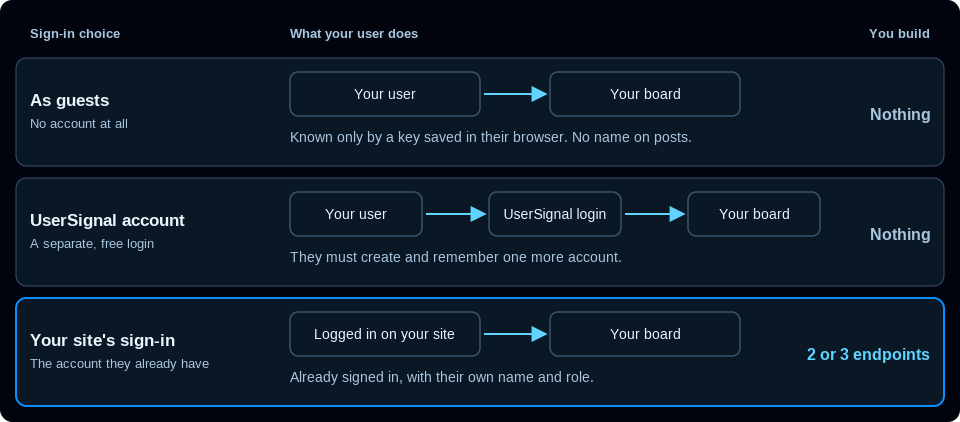
As guests
The fastest way to start. Anyone can read the board and join in without an account.
Nobody has an identity, though. UserSignal recognizes a returning person only by a key saved in their browser, so a new browser or device counts as a new person, and that person can vote again. Posts carry no name, and you can’t tell which of your customers wrote them. People may also have to complete a bot check to take part.
With a UserSignal account
People sign in with a free UserSignal account, and you configure nothing. Posts have a name and people can come back from any device.
But your users have to create and remember another login just to give you feedback, and some won’t bother. They also pick their own display name, and each board sees only a pseudonym, so you still can’t tell which customer wrote what. As with guests, people may have to complete a bot check.
With your site’s sign-in
People use the account they already have with you. If they’re logged in on your site, they arrive at the board already signed in, with nothing to click.
We offer this option because the other two leave your users outside your product. With your site’s sign-in, feedback comes from your real customers, under their real names. Your own staff can moderate because of the role they have on your site. When someone deletes their account with you, you can remove them from the board too.
You build two or three small endpoints for it, covered in the rest of this guide. Your site’s sign-in is part of the Starter plan and above.
Compare them
| As guests | UserSignal account | Your site’s sign-in | |
|---|---|---|---|
| You build | Nothing | Nothing | 2 or 3 endpoints |
| Your user has to | Nothing, or a bot check | Create and use another login | Nothing, if logged in with you |
| Name on posts | None | One they choose | The one you send |
| You know which customer posted | No | No | Yes |
| Who moderates | You, from the console | You, from the console | You, plus anyone with a mapped role on your site |
| Who can delete their data | The person, on the board | The person, on the board | You, through the API |
| Plan | Every plan | Every plan | Starter and above |
Start simple, add your sign-in later. Once the board has suggestions, the only change allowed is to your site’s sign-in. You can start with guests or UserSignal accounts and move to your sign-in when you upgrade, keeping every suggestion, comment and vote. People who took part before keep their posts, and sign in through your site to take part again. Former guests can still download or erase their guest posts from the board’s menu, in the browser they used. Former UserSignal contributors can no longer download or erase their posts on this board alone; deleting their UserSignal account still removes them. An embedded guest board is the exception: it can’t move once it has suggestions, because its guests’ keys are kept by your page, where the board can’t reach them after the move. You can’t go the other way either: once a board with suggestions uses your sign-in, it stays on it.
If you chose guests or a UserSignal account, you’re done: pick it in the console and share your board’s address, or embed it with one script tag. Use Open board as editor in the console to moderate. Most of the rest of this guide is about your site’s sign-in.
How your site’s sign-in works
Why your site has to provide endpoints
UserSignal runs on its own servers, at its own address. It has no copy of your user database, and it can’t read your session cookie, because a browser only sends a cookie to the site that set it. Only your site knows who is logged in.
So UserSignal has to ask, and the endpoints you build are how it asks and how you answer. UserSignal never shows your users a login page or sees their passwords.
Who is involved
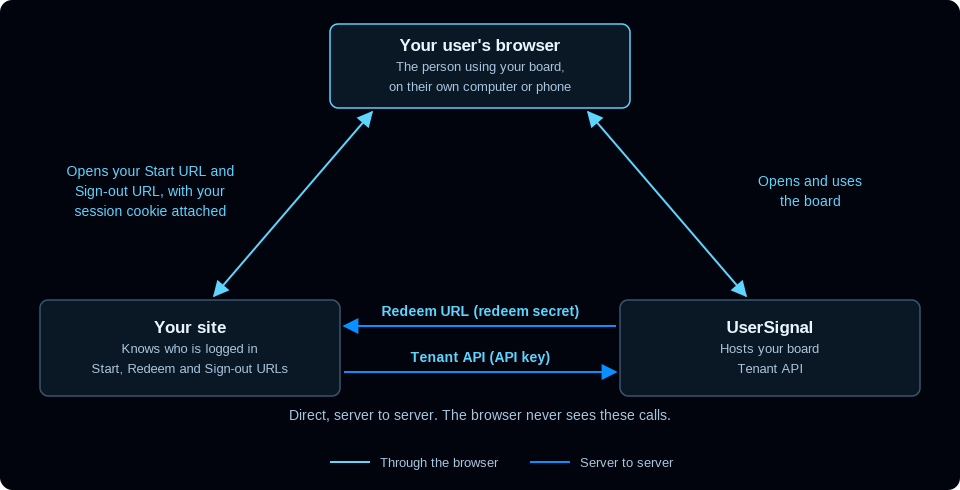
There are three parties:
| Party | What it is |
|---|---|
| Your user’s browser | The Chrome, Safari or similar on the computer or phone of the person using your board. |
| Your site | Your web application and its server. |
| UserSignal | The service hosting your board. |
UserSignal’s server doesn’t call your Start URL itself. It tells your user’s browser to go there, with a redirect, and the browser opens your page as if they had clicked a link, so your session cookie comes with it. That’s how you can tell who they are.
Your Redeem URL is the opposite. UserSignal’s server calls it directly, the browser isn’t involved, and the request has no cookie. It carries a secret instead.
Terms
| Term | Meaning |
|---|---|
| Board | Your feedback site, for example https://example-app.usersignal.dev. |
| App ID | Your board’s permanent ID, which is the slug you chose when you created it, for example example-app. The API calls a board an “app”. |
| Tenant | Your UserSignal account. “Tenant API” means the API for customers’ servers. |
| Console | The UserSignal dashboard, where you configure your board. |
| Code | A short-lived, single-use random string your site creates to say “this person just signed in”. |
The console calls the people using your board “visitors”. This guide calls them your
users. You will also see the letters fni in a few identifiers, such as the API key
prefix fni_tk_ and the DNS record _fni-verify. It is an older name for UserSignal.
Use those identifiers exactly as shown.
The sign-in flow
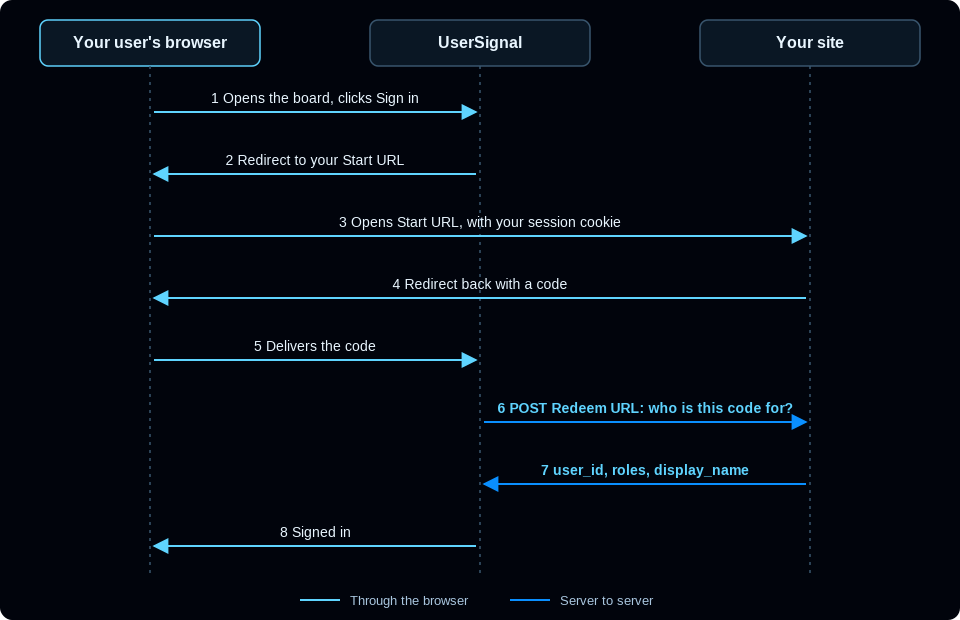
- Your user opens your board or clicks Sign in.
- UserSignal redirects their browser to your Start URL.
- The browser opens it and sends your site’s session cookie, so you can tell who it is. If they aren’t logged in, you show your login page first.
- You create a code and redirect the browser back to UserSignal with it.
- The browser delivers the code to UserSignal.
- UserSignal’s server sends the code directly to your Redeem URL.
- You check the code and answer with who the user is.
- UserSignal creates a board session, and your user is signed in.
Why a code instead of sending the user’s details?
Anything that passes through a browser can be seen or changed by the person using
it. If your Start URL redirected with ?user_id=4815, anyone could edit the
number and become someone else.
A code means nothing by itself. The real answer travels in step 7, directly between the two servers.
Two secrets, one for each direction
| Secret | Who sends it | Who checks it | Used for |
|---|---|---|---|
| Redeem secret | UserSignal | You | Proving that a call to your Redeem URL is from UserSignal |
API key (fni_tk_…) |
You | UserSignal | Proving that a call to the tenant API is from you |
Both are shown once in the console, so save them when you create them. Keep them on your server, never in browser code. Don’t use one in place of the other.
Automatic sign-in
When a signed-out user arrives at your board, UserSignal checks whether they
are already logged in on your site, so they don’t have to click anything. It does
this with the same Start URL, adding prompt=none, which means “answer now, and
don’t show a login page”. It does this at most once per browser session.
If they’re logged in, you send a code as usual. If not, you redirect back with
error=login_required. This is a normal answer. They read the board signed out.
Sessions and signing out
- A board session lasts 15 minutes. UserSignal then runs the same automatic check again. While the user is still logged in on your site, they notice nothing, and text they were typing is kept.
- Someone who logs out of your site keeps board access for up to 15 more minutes. You don’t need to call anything.
- Someone who signs out of the board ends the board session only. UserSignal can’t end your session, so without a Sign-out URL their next Sign in works instantly and sign-out appears to do nothing.
Roles
A role is a label for what someone is allowed to do. Most people on a board just take part, but a few need extra powers, such as approving suggestions or hiding a comment. Your site probably has labels like this already, such as “admin” or “support”. Roles let those same people have those powers on the board.
Your Redeem URL can send your own role names, such as ["admin"]. In the console,
you map each name to what it may do on the board. Every signed-in user can already
read, post, vote and comment, so you only need to map the people who moderate.
| Preset | Adds |
|---|---|
| Editor | Reviewing and editing any suggestion, changing its status, and moderating comments |
| Admin | Everything an editor can do, plus configuring the board |
A role name you haven’t mapped grants nothing extra. Your Redeem URL can’t grant permissions directly, so a bug in your endpoint can’t make someone an admin unless it sends a role you mapped to admin.
The tenant API: when your site calls UserSignal
Everything so far has been UserSignal asking your site a question. The tenant API goes the other way: your server calls UserSignal, using your API key. It has nothing to do with signing in, and it does two things:
- Erase a user. When someone leaves your site, your server tells UserSignal to remove their name and posts from the board too.
- Export a user’s data. If someone asks for a copy of their data, your server can fetch what they’ve done on the board and include it.
You don’t have to build this into your site on day one, because you can also run an erase by hand.
What you will build
| What | What it does | Who calls it | Required? |
|---|---|---|---|
| Start URL | Works out who the user is and creates a code | Your user’s browser, after UserSignal redirects it | Yes |
| Redeem URL | Swaps the code for the user’s details | UserSignal’s server | Yes |
| Sign-out URL | Ends the user’s session on your site | Your user’s browser, after UserSignal redirects it | No, but sign-out seems broken without it |
| Code URL | Creates a code for a board embedded in your pages | The embed script on your page | Only for an embedded board |
| Calls to the tenant API | Deletes or exports a user’s data | Your server calls UserSignal | No code needed: you can run erase by hand, but you need some way to remove people |
You choose the URLs. This guide uses /usersignal/start, /usersignal/redeem and
/usersignal/sign-out, but any path works. The Code URL is the exception: the embed
script calls /usersignal/code unless you tell it otherwise.
Looking for exact fields and status codes? See the API reference. This guide explains how the pieces fit together, and the reference is the lookup for each endpoint. You can also download its OpenAPI file to generate a server stub or a client.
Set up your board
In the console, create a board and then:
- In Settings, set How visitors participate to With my site’s sign-in.
- In Secrets, create a Redeem secret and an API key, and store both in your server’s secret storage.
- In Sign-in, enter your Start URL, Redeem URL and, if you have one, your Sign-out URL.
- Still in Sign-in, under Role capabilities, add the role name your site sends for administrators and give it the admin or editor preset. Until you do, nobody can moderate the board.
Your URLs must use https and be reachable from the public internet, because
UserSignal’s server has to call your Redeem URL. To test from your own machine,
use a tunnel that gives you a public https address.
Endpoints you build
The API reference has the full schemas, and there’s a complete example at the end of this section.
Start URL
UserSignal redirects your user’s browser here. It is always a full page navigation,
never a script, so your normal session cookie arrives with it. SameSite=Lax
cookies work. SameSite=Strict cookies only arrive if your board is on a custom
domain under your own site, such as feedback.example.com for example.com.
GET https://example.com/usersignal/start
      ?state=A-RG-xWPc81d.BWXFS7U_5PeDxdN2QAFBARatc_5JP1Gw
      &redirect_uri=https%3A%2F%2Ffeedback.example.com%2Fauth%2Fcallback
| Parameter | Meaning |
|---|---|
state |
UserSignal’s marker for this sign-in, up to 512 characters. Send it back exactly as you got it. Don’t parse or store it. |
redirect_uri |
Where to send the browser back to. |
prompt |
Only sent as none, for automatic sign-in. |
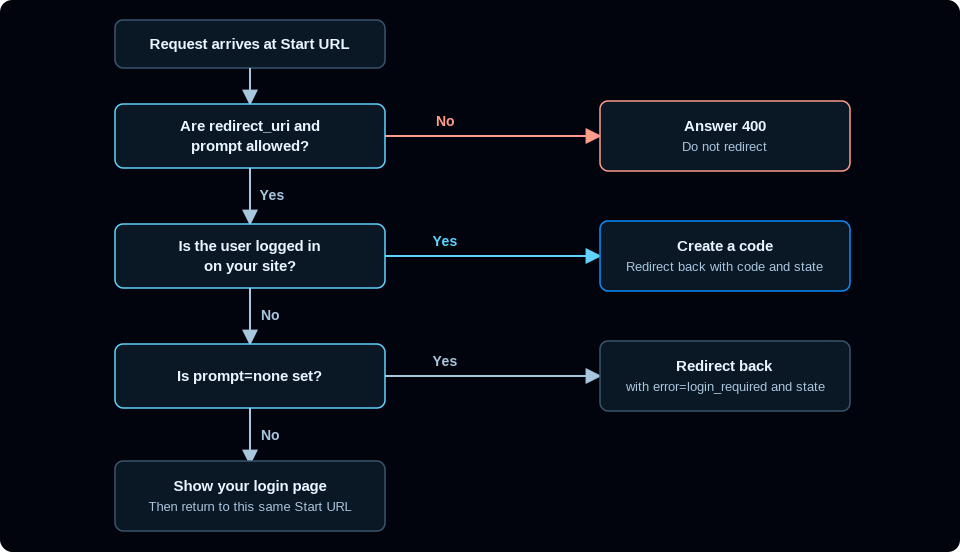
Handle the request in this order:
-
Check
redirect_uri. It must exactly match one of the addresses below, comparing the whole string. If it doesn’t, answer400and don’t redirect.When Allowed value Your usersignal.dev address https://<app-id>.usersignal.dev/auth/callbackEach custom domain https://<your-hostname>/auth/callbackThe console’s Test sign-in https://console.usersignal.dev/console/sign-in-test/callbackWithout this check, anyone could build a link that sends your users’ codes to their own site, and sign in as them.
-
Check
prompt. If it is present and isn’tnone, answer400. -
Not logged in, with
prompt=none: redirect straight back. Don’t show a login page.302 Location: https://feedback.example.com/auth/callback?error=login_required&state=<state> -
Not logged in, no
prompt: show your login page. After login, send the browser back to this same Start URL with the same parameters. -
Logged in: create a code and redirect back with it.
302 Location: https://feedback.example.com/auth/callback?code=<code>&state=<state>
The code must be:
- random, with at least 128 bits of randomness
- usable only once
- valid for about 60 seconds
- tied to your app ID and to this exact
redirect_uri - no longer than 512 characters
Never send someone to UserSignal with a code unless UserSignal started that sign-in. It refuses any code that doesn’t belong to a sign-in it began.
Redeem URL
UserSignal’s server calls this to exchange the code for the user’s details. No browser is involved, so it needs no cookie or CSRF token.
POST https://example.com/usersignal/redeem
Authorization: Bearer <redeem secret>
Content-Type: application/json

{
  "code": "Qm9vdHN0cmFwLWNvZGUtZXhhbXBsZQ",
  "app_id": "example-app",
  "redirect_uri": "https://feedback.example.com/auth/callback"
}
Handle the request in this order:
- Check the secret first, before you look at the code. If it’s wrong or
missing, answer
401and leave the code untouched. During secret rotation, UserSignal may retry the same code with your other secret, and that retry fails if the first attempt used up the code. - Check the code. Answer
400unless it exists, is unused, hasn’t expired, and was created for thisapp_idandredirect_uri. A code from your Code URL also comes with anonce, and must have been created for that exactnonce. A code from your Start URL comes without one, so refuse it if anonceis sent. - Mark the code as used, then answer. Do it in this order, so a code can’t be used twice even if your answer gets lost on the way back.
200 OK
Content-Type: application/json

{"user_id": "4815", "roles": ["admin"], "display_name": "Ada Lovelace"}
| Field | Required | Rules |
|---|---|---|
user_id |
Yes | 1–255 characters, with no control characters and no spaces at either end. Use your database ID, not an email address, because an email can change. It must never change for a person, and never be reused for someone else. |
roles |
No | Up to 32 of your role names, each 1–64 characters. |
display_name |
No | 1–128 characters, or null. Shown next to what the user writes. |
Send only these fields. Any other field, such as email or is_admin, makes
the sign-in fail. So does a value that breaks the rules, so if a name doesn’t fit,
leave it out rather than cutting it short. Lengths are counted the way JavaScript’s
String.length counts them, where an emoji usually counts as two.
UserSignal waits about 5 seconds for your answer, doesn’t follow redirects, and refuses a response over 16 KiB.
Sign-out URL
Optional, but you’ll want it. When someone clicks Sign out on the board, UserSignal clears its own session and then sends the browser here:
GET https://example.com/usersignal/sign-out
      ?return_to=https%3A%2F%2Ffeedback.example.com%2F%3Fsign_in%3Dsigned_out
- Check that the origin of
return_tois one of your board’s addresses. If it isn’t, answer400and don’t redirect. Your endpoint is public, so anyone can build a link to it. - End the user’s session on your site.
- Redirect the browser to
return_to.
The board session is already gone by then, so if this endpoint is down, nobody stays signed in to the board.
Anyone can log your users out with this link. Another site can send your user to your Sign-out URL, and their session on your site ends. Nobody gets signed in as them or sees their data, and most “log out” links work the same way, so most sites accept this. If a surprise logout would cost your users something, such as unsaved work, change step 2: show a page with a Sign out button, and end the session only when that button sends a
POSTwith your usual CSRF protection. Then redirect toreturn_toas in step 3. This adds a click to every sign-out from the board.
Code URL (embedded boards only)
Only needed if your board is embedded in your pages. An embedded board runs in a frame on another site, so it can’t send your user’s browser to your Start URL and back. Instead, the embed script on your page asks your own server for a code directly:
POST https://example.com/usersignal/code
Content-Type: application/json
Cookie: <your session cookie>

{"board": "example-app", "nonce": "3yq0fJm9QeVZ2b6sWkTt1uRcXpLhAoN8"}
It is a normal fetch from your own page, so your session cookie comes with it, as
for any other request your page makes to your server. The board picks a new nonce
each time it asks.
-
Check that the request is really from your page. This endpoint creates a sign-in from a cookie, so give it the same CSRF protection as your other
POSTs. At least requireContent-Type: application/json, which another site’s form can’t send, and refuse anOriginheader that isn’t your own. -
Check
boardis your app ID, and thatnonceis 32–128 characters of letters, digits,-and_. Otherwise answer400. -
Not logged in: answer
401. Any answer other than200means “no code”, and the board says sign-in is unavailable. Your user can still read it. -
Logged in: create a code with the same rules as for the Start URL, but tied to this
nonceand to theredirect_urihttps://<app-id>.usersignal.dev/embed. Answer with it:200 OK Content-Type: application/json {"code": "RW1iZWQtY29kZS1leGFtcGxl"}
UserSignal then redeems the code at your Redeem URL as usual. The
request also carries the nonce, and its redirect_uri is the /embed address:
{
  "code": "RW1iZWQtY29kZS1leGFtcGxl",
  "app_id": "example-app",
  "redirect_uri": "https://example-app.usersignal.dev/embed",
  "nonce": "3yq0fJm9QeVZ2b6sWkTt1uRcXpLhAoN8"
}
The nonce is what stops a code that leaks from one board session being used in
another, so check it on redeem.
Complete example
This is a working example in Node.js with Express. The same logic works in any
language. It assumes your own session middleware sets req.user, with id,
roles and name, for someone who is logged in.
It keeps codes in memory to stay short, which only works with a single server process and loses codes on restart. In production, use your database or Redis instead. Whatever you use:
- Make codes expire on their own. Most codes are never redeemed, because
people close the tab or a request fails. Give each one a 60-second lifetime
in the store itself, such as
SET code value EX 60 NXin Redis, or a database row with an expiry time that a scheduled job deletes. Otherwise abandoned codes pile up forever. - Store only what Redeem answers with: the user ID, roles and display name. Not your whole user object.
- Check a code and mark it used in one atomic step, such as
GETDELin Redis or aDELETE … RETURNINGin SQL. Otherwise two requests racing with the same code can both succeed.
import crypto from "node:crypto";
import express from "express";

const app = express();
// Add your own session middleware here, so req.user is set.

const APP_ID = "example-app";
const ALLOWED_REDIRECT_URIS = new Set([
  "https://example-app.usersignal.dev/auth/callback",
  "https://feedback.example.com/auth/callback", // only with a custom domain
  "https://console.usersignal.dev/console/sign-in-test/callback",
]);
// Only for an embedded board (an embedded board has no custom domain).
const EMBED_REDIRECT_URI = "https://example-app.usersignal.dev/embed";
const SITE_ORIGIN = "https://example.com";
const NONCE = /^[A-Za-z0-9_-]{32,128}$/;
const BOARD_ORIGINS = new Set([
  "https://example-app.usersignal.dev",
  "https://feedback.example.com",
]);
// Set the previous secret only while you are rotating.
const REDEEM_SECRETS = [
  process.env.REDEEM_SECRET,
  process.env.REDEEM_SECRET_PREVIOUS,
].filter(Boolean);

// In production: your database or Redis, with a built-in expiry.
const CODE_LIFETIME_MS = 60_000;
const MAX_CODES = 10_000; // Caps memory if someone floods the Start URL.
const codes = new Map();

// Every code lives equally long, so the Map's insertion order is also its
// expiry order. Deleting from the front until the first live code removes
// every expired one.
function dropExpiredCodes() {
  const now = Date.now();
  for (const [code, entry] of codes) {
    if (entry.expiresAt > now) break;
    codes.delete(code);
  }
}

app.get("/usersignal/start", (req, res) => {
  const { state, redirect_uri: redirectUri, prompt } = req.query;
  if (typeof state !== "string" || !/^[!-~]{1,512}$/.test(state)) {
    return res.sendStatus(400);
  }
  if (!ALLOWED_REDIRECT_URIS.has(redirectUri)) return res.sendStatus(400);
  if (prompt !== undefined && prompt !== "none") return res.sendStatus(400);

  const back = new URL(redirectUri);
  back.searchParams.set("state", state);

  if (!req.user) {
    if (prompt === "none") {
      back.searchParams.set("error", "login_required");
      return res.redirect(302, back.href);
    }
    // Your login page must return here afterwards.
    return res.redirect(302, `/login?return_to=${encodeURIComponent(req.originalUrl)}`);
  }

  dropExpiredCodes();
  if (codes.size >= MAX_CODES) return res.sendStatus(503);

  const code = createCode(req.user, redirectUri, null);
  back.searchParams.set("code", code);
  res.redirect(302, back.href);
});

function createCode(user, redirectUri, nonce) {
  const code = crypto.randomBytes(32).toString("base64url");
  codes.set(code, {
    userId: String(user.id),
    roles: user.roles,
    displayName: user.name || null,
    redirectUri,
    nonce,
    expiresAt: Date.now() + CODE_LIFETIME_MS,
  });
  return code;
}

// Only for an embedded board with your site's sign-in.
app.post("/usersignal/code", express.json(), (req, res) => {
  // CSRF: another site's form can't send JSON, and the browser sets Origin.
  if (!req.is("application/json")) return res.sendStatus(415);
  const origin = req.get("origin");
  if (origin !== undefined && origin !== SITE_ORIGIN) return res.sendStatus(403);

  const { board, nonce } = req.body ?? {};
  if (board !== APP_ID || typeof nonce !== "string" || !NONCE.test(nonce)) {
    return res.sendStatus(400);
  }
  if (!req.user) return res.sendStatus(401);

  dropExpiredCodes();
  if (codes.size >= MAX_CODES) return res.sendStatus(503);
  res.json({ code: createCode(req.user, EMBED_REDIRECT_URI, nonce) });
});

// Hashing gives both values the same length, which timingSafeEqual requires.
const sha256 = (text) => crypto.createHash("sha256").update(text).digest();
function hasValidSecret(authorization = "") {
  const sent = sha256(authorization);
  return REDEEM_SECRETS.some((secret) =>
    crypto.timingSafeEqual(sent, sha256(`Bearer ${secret}`)),
  );
}

app.post("/usersignal/redeem", express.json(), (req, res) => {
  if (!hasValidSecret(req.get("authorization"))) return res.sendStatus(401);

  const { code, app_id: appId, redirect_uri: redirectUri, nonce = null } = req.body ?? {};
  dropExpiredCodes();
  const entry = codes.get(code);
  if (
    !entry ||
    appId !== APP_ID ||
    redirectUri !== entry.redirectUri ||
    nonce !== entry.nonce // null for a Start URL code
  ) {
    return res.sendStatus(400);
  }

  codes.delete(code); // Mark it used before answering.
  res.json({
    user_id: entry.userId,
    roles: entry.roles,
    display_name: entry.displayName,
  });
});

app.get("/usersignal/sign-out", (req, res) => {
  let returnTo;
  try {
    returnTo = new URL(req.query.return_to);
  } catch {
    return res.sendStatus(400);
  }
  if (!BOARD_ORIGINS.has(returnTo.origin)) return res.sendStatus(400);

  // End your own session here.
  res.redirect(302, returnTo.href);
});
Test your integration
The Sign-in tab in the console has two tests. Run them in this order:
- Check endpoints needs no login, and it tells you which of your live redeem
secrets matched. UserSignal calls your endpoints the way a signed-out user’s
browser and its own server would, and expects:
- Start URL: a login page or a redirect to one. A redirect straight back with a code fails, because that would sign in anybody.
- Start URL with
prompt=none: a redirect straight back witherror=login_required, the samestate, and no code. - Redeem URL with a wrong secret:
401or403. - Redeem URL with your live secret and a made-up code: another
4xx.
- Test sign-in runs the whole flow with your own account, and names the step
that broke. This is the test that proves your
redirect_uricheck accepts the right addresses.
Before you go live, also check that:
- signing in on the board shows the right name
- someone with a mapped role can moderate
- signing out of the board also logs them out of your site, if you set a Sign-out URL
Endpoints you call: the tenant API
Call these from your server only, never from a browser, because they use your API key.
Authorization: Bearer fni_tk_<key id>_<secret>
The base URL is https://api.usersignal.dev. Full details are in the
API reference.
Replace {appId} with your app ID, and {userId} with the user_id you send from
your Redeem URL. Percent-encode {userId}, for example with
encodeURIComponent.
Erase a user
Call this when someone deletes their account with you. Deleting the account on your site doesn’t remove them from the board by itself.
POST /v1/tenant/apps/{appId}/users/{userId}/erase
Stop creating codes for the user first. A code you create after erasing someone creates a new, unrelated user on the board.
curl -X POST \
  -H "Authorization: Bearer $USERSIGNAL_API_KEY" \
  https://api.usersignal.dev/v1/tenant/apps/example-app/users/4815/erase
{ "outcome": "erased", "principal": { "id": "prn_…", "display_name": null, "deleted": true } }
outcome |
Meaning |
|---|---|
erased |
The user’s identity is gone, and any board session they had stops working on its next request. |
already_erased |
An earlier call already did this. |
marker_only |
UserSignal had never seen this user. It recorded the erasure anyway, so any code created before this call is refused. |
Every outcome is a success, so it’s safe to retry a failed call from a queue, even if the first attempt worked.
What happens to the user’s posts depends on When a user is deleted, in the board’s Settings. Either way, their name goes and their votes are deleted.
| Setting | Comments | Suggestions |
|---|---|---|
| Keep their posts as “Deleted user” | Stay, shown as “Deleted user” | Stay, shown as “Deleted user” |
| Remove their posts | Deleted | Replaced by a placeholder |
No code needed: run it by hand
You don’t have to connect this to your account-deletion code. If people rarely leave,
or you aren’t ready to build it, you can run the curl command above yourself when
someone deletes their account or asks to be removed.
- Make sure they can’t sign in on your site anymore. Their next sign-in would create a new board user.
- Find their
user_id, the same value your Redeem URL sends. Percent-encode it if it has anything other than letters, numbers,-,_,.or~. - Run the command from a trusted computer, with your API key in an environment variable. Don’t paste the key into the command, a shared document or a chat.
- Check the
outcomein the response.erasedis what you expect for someone who used the board. Be careful withmarker_only: it means UserSignal has never seen that ID, so if the user did use the board, you probably mistyped the ID and they’re still there. Check it and run the command again.
Someone has to remember to do it every time, and there’s no way to do it in the console yet. Keep this step in whatever process you follow when a user leaves, or automate it when you can.
Export a user’s data
Use this to include feedback data when someone asks for a copy of their data.
GET /v1/tenant/apps/{appId}/users/{userId}/export
curl -H "Authorization: Bearer $USERSIGNAL_API_KEY" \
  https://api.usersignal.dev/v1/tenant/apps/example-app/users/4815/export
The response holds the user’s suggestions, comments and votes. For someone who
has never used the board, or who has been erased, you get an empty export rather
than a 404, so the endpoint doesn’t reveal who has used your board:
{
  "format_version": 1,
  "exported_at": "2026-09-17T09:00:00.000Z",
  "principal": null,
  "suggestions": [],
  "comments": [],
  "votes": []
}
An export is limited to 2,000 suggestions, 5,000 comments and 10,000 votes. Above
that, you get 422 with the code export_too_large, never a partial export.
Errors
Errors are JSON. Use code in your own logic, and include request_id if you
contact support.
{
  "type": "…",
  "title": "Rate limit exceeded",
  "status": 429,
  "code": "rate_limited",
  "request_id": "…"
}
| Status | Meaning | What to do |
|---|---|---|
401 |
The key is missing, wrong, revoked or for another board. All of these look the same. | Check the key and the app ID. |
404 |
The board isn’t being served, for example because the account is suspended. | Check the app ID, then contact support. |
409 |
Erase only: a sign-in for the same user happened at the same moment. | Retry. |
422 |
Export only: export_too_large. |
Contact support. |
429 |
Too many requests. | Wait for the number of seconds in Retry-After, then retry. |
503 |
Erase only: UserSignal can’t record the erasure right now. Nothing was erased. | Retry later. |
Rotate your secrets
Both secrets can be replaced without downtime, because two of each can be live at once. In the console’s Secrets tab:
- Click Rotate to create the new secret, and save it.
- Update your server to use it. For the redeem secret, your server must accept both the old and the new secret until the switch is finished.
- For the redeem secret, run Check endpoints, which tells you which secret matched, to confirm your server holds the new one.
- Revoke the old secret.
Embed the board in your site
Instead of sending people to the board’s own address, you can show it inside your own pages, either in place on a page or as a Feedback button that opens it in a panel. Embedding is part of the Starter plan and above.
The board runs in a frame, so your page’s styles and scripts can’t break it, and it
can’t read your page. It still has its full-page address,
https://<app-id>.usersignal.dev, which you and your editors use to moderate.
Set it up
- When you create the board, set Where will visitors use it? to Embedded in your site. This can’t be changed later, and an embedded board can’t have a custom domain.
- In the board’s Embed tab, under Allowed origins, add each site that will
show the board, such as
https://example.com. Use the exact origin:https, the hostname and a port if you use one, with no path.https://www.example.comandhttps://example.comare different origins. The board refuses to appear on any page not listed here. - Choose Display: Inline at this position or Floating launcher.
- Click Copy script tag and paste it into your page’s HTML where the board should appear.
The tag looks like this:
<script
  src="https://cdn.usersignal.dev/embed/v1/1/embed.js"
  integrity="sha384-…"
  crossorigin="anonymous"
  data-fni-board="example-app"
  data-fni-url="https://example-app.usersignal.dev"
  data-fni-mode="inline"
  data-fni-participation="guest"></script>
Copy it from the console rather than typing it. The integrity value lets the
browser check that the script is exactly the version you copied, so it can’t be
changed under you. Fixes come out at a new address; copy the tag again to take one.
If your site sends a Content-Security-Policy, allow https://cdn.usersignal.dev in
script-src. A tag copied before the script moved to that address loads it from
https://usersignal.dev instead; that address keeps working, so a tag you already
pasted needs no change.
Only allow sites you trust. Adding an origin needs no proof that you own it. If your board uses your site’s sign-in, any page on an allowed origin can ask your Code URL to sign its visitor in to the board.
Inline or launcher
- Inline puts the board right after the script tag. Its height follows the board’s content, between 320 and 1600 pixels. It loads when it scrolls into view.
- Launcher puts a Feedback button where the tag is, which opens the board in a panel at the bottom right of the window. Escape or the button closes it.
How sign-in works in an embed
Each choice from Choose how people use your board works in an embed, with these differences:
| Choice | In an embed |
|---|---|
| As guests | The key that recognizes a returning guest is kept in your site’s browser storage, one per origin. A person who meets the board on two of your origins counts as two guests. If the browser blocks storage, guests can read but not post. |
| UserSignal account | Sign in opens a small UserSignal window. The board session lasts 15 minutes and ends when your page reloads; signing in again is one click, with no password while their UserSignal login lasts. |
| Your site’s sign-in | You build a Code URL as well as your Redeem URL. Your Start URL and Sign-out URL are only used on the full-page board. |
With your site’s sign-in, someone logged in on your site is signed in to the embedded board as soon as it loads, with nothing to click:
- The board, inside its frame, picks a random
nonceand asks your page for a code. - The embed script on your page calls your Code URL with that
nonce. - Your server sees your session cookie and answers with a code tied to the
nonce. - The script passes the code to the board, and UserSignal redeems it at your Redeem
URL, sending the
noncetoo. - The board keeps the session in memory for 15 minutes, then asks for a new code the same way.
Why not use the board’s own sign-in? Inside a frame on your site, the board’s cookies would be third-party cookies, which Safari and Firefox block. Asking your page works in every browser, because the request to your server comes from your own page.
Signing out of an embedded board ends the board session only. It doesn’t call your Sign-out URL, and it doesn’t sign the person back in automatically until they click Sign in.
Options
The data-fni-* attributes on the tag:
| Attribute | Meaning |
|---|---|
data-fni-board |
Your app ID. |
data-fni-url |
Your board’s address. |
data-fni-mode |
inline or launcher. |
data-fni-participation |
The board’s sign-in choice, as the console filled it in. Keep it matching the board. |
data-fni-code-endpoint |
Your Code URL, if it isn’t /usersignal/code. It must be on the same origin as the page. |
To control the board from your own script, load the tag without data-fni-board
and call FNI.mount yourself:
const board = FNI.mount({
  board: "example-app",
  url: "https://example-app.usersignal.dev",
  mode: "launcher",
  participation: "tenant_sign_in",
  launcherLabel: "Send feedback",   // the button's text, default "Feedback"
  title: "Feedback",                // the frame's accessible name
  mountAt: document.querySelector("#feedback-anchor"), // inserted after this element
  // Instead of a Code URL, get the code any way you like:
  getCode: async (nonce) => (await myApi.post("/usersignal/code", { nonce })).code,
});

// Later, for example when your single-page app leaves the page:
board.unmount();
Test your embed
- Open a page with the tag on each origin you allowed. A page on an origin you didn’t allow shows the browser’s “refused to connect” frame instead of the board.
- For your site’s sign-in, open the page logged in and check that the board shows your name, then logged out and check that the board loads without you.
- In the browser’s network panel, a call to your Code URL should answer
200with a code when you’re logged in, and401when you’re not.
Use your own domain
Your board can also answer at a hostname you control, such as
feedback.example.com. It stays on its usersignal.dev address as well. Custom
domains are part of the Growth plan and above.
-
In Settings, set Where visitors use the board to Your own domain.
-
In Domains, under Custom domains, add the hostname. The console shows the DNS records to publish:
Record Name Value CNAME feedback.example.comdomains.usersignal.devTXT _fni-verify.feedback.example.comThe fni-verify=…value from the console, copied exactly -
Click Verify now.
-
Wait for the certificate. Click Check certificate to refresh the status, since nothing checks automatically.
-
Add
https://feedback.example.com/auth/callbackto the allowedredirect_urivalues in your Start URL, and the board’s origin to the allowedreturn_toorigins in your Sign-out URL.
Some things to know:
- Verifying reserves the name for your account permanently. If you remove it later, it stops being served, but nobody else can claim it. Until you verify, it isn’t reserved, and another account could verify it first.
- Use a subdomain. A bare domain like
example.comcan’t hold a CNAME record. - Each address has its own sign-in. Someone signed in on
example-app.usersignal.devisn’t signed in onfeedback.example.com, and the reverse is also true. - New accounts: if your account is still awaiting approval, you can verify a name, but no certificate is issued until you’re approved.
| Message in the console | What to do |
|---|---|
txt_missing |
No TXT record was found yet. Publish it, wait for DNS to update, and verify again. |
txt_mismatch |
A TXT record exists with the wrong value. Replace it with the value shown, with no added quotes or trailing space. |
dns_unavailable |
DNS couldn’t be checked, and nothing changed. Try again shortly. |
hostname_reserved |
Another account verified this name first. Remove it from your list. |
provider_pending |
The certificate isn’t issued yet. Check the CNAME, then check again. |
provider_failed |
The certificate couldn’t be issued. Fix the CNAME and check again, which starts a new attempt. |
provider_removal_pending |
The name is no longer served, but its certificate isn’t deleted yet. Retry the removal. |
Connect an AI agent (MCP)
Owners and admins can let an AI agent (Claude, Cursor, or your own) work the moderation queue on every board of their account: read what is waiting, approve or reject suggestions and comments, and move suggestions through their statuses. It is on every plan.
The agent can do exactly what you can do on a board as its editor, nothing more. Every change it makes is recorded in the board’s history, marked as made through MCP.
Who can connect
An owner or admin of the account. If you stop being an owner or admin, your agent loses access on its next call, whether it signed in or used a key.
Agents that can sign in (recommended)
Most MCP clients (claude.ai, Claude Code, Cursor) sign in with OAuth. Add a custom connector with this URL:
https://console.usersignal.dev/mcp
The client opens a UserSignal sign-in. Sign in with the account you use for the console, and the agent can reach every board you administer.
-
claude.ai: Settings → Connectors → Add custom connector, paste the URL, then choose Connect.
-
Claude Code: run the command below, then run
/mcpin Claude Code, pickusersignaland choose Authenticate.claude mcp add --transport http usersignal https://console.usersignal.dev/mcp -
Cursor: add the server to
~/.cursor/mcp.json, then sign in when Cursor asks.{ "mcpServers": { "usersignal": { "url": "https://console.usersignal.dev/mcp" } } }
You do not need an OAuth client ID or secret. The client registers itself the first
time it connects (OAuth dynamic client registration, or a client ID metadata document),
so leave any client ID and secret fields empty. The client discovers where to sign in
from https://console.usersignal.dev/.well-known/oauth-protected-resource/mcp. The
token it receives is valid for UserSignal’s /mcp only.
Agents that cannot sign in: keys
A long-running agent or a script that cannot open a sign-in page can use a key instead. In the console, open your account’s boards page, choose Agent access beside the account name, then choose Create a key. The key is shown once; give it to the agent as a bearer token:
Authorization: Bearer fni_mcp_<key id>_<secret>
For example, in Claude Code:
claude mcp add --transport http usersignal https://console.usersignal.dev/mcp \
  --header "Authorization: Bearer fni_mcp_<key id>_<secret>"
A key acts with the authority of the person who created it, and stops working if they
are no longer an owner or admin. An account can hold five keys. Revoke one from the
same page; agents using it are cut off at once. An MCP key works only at /mcp; it is
not an API key for the tenant API.
What to ask
Talk to the agent in plain language; it picks the tools. For example:
- “What’s waiting for approval across my boards?”
- “Show the ten most-voted open suggestions on my board.”
- “Approve the pending suggestions that are real feature requests, and reject the spam. Show me the list before you change anything.”
- “Summarize this week’s comments on the dark mode suggestion.”
- “Mark the suggestions about CSV export and dark mode as completed.”
- “Which suggestions are planned but haven’t been touched in a month?”
- “When was the CSV export suggestion rejected, and was it ever restored?”
Tools
Pass board_id (from list_boards) to work on one board. Read tools accept no
board_id to cover every board you administer.
| Tool | What it does |
|---|---|
list_boards |
The boards you administer |
get_board_stats |
Totals, and how many suggestions and comments await approval |
board_counts |
Suggestions per board chip; Under Consideration includes open |
list_suggestions |
A board’s suggestions: approved by default, or by moderation or workflow status; newest, oldest or most voted |
list_pending_suggestions |
Suggestions awaiting approval, oldest first |
get_suggestion |
One suggestion with all its comments |
list_pending_comments |
Comments awaiting approval, oldest first |
get_audit_events |
The board’s moderation history |
approve_suggestion, reject_suggestion, restore_suggestion |
Moderate one suggestion |
set_workflow_status |
Move a suggestion to planned, in progress, completed, and so on |
bulk_moderate |
Approve or reject up to 50 suggestions at once, all or nothing |
approve_comment, reject_comment, hide_comment, unhide_comment |
Moderate one comment |
Each suggestion carries a version. A suggestion write must send the version the agent
last read, and is refused if someone changed the suggestion since. The agent then
reads it again and decides on what is there now, so it never overwrites a person’s
decision it has not seen.
When it does not work
| Symptom | Fix |
|---|---|
| The client says it is unauthorized right after signing in | It did not ask for the /mcp resource. Use a client that supports the MCP authorization spec, or a key. |
list_boards is empty |
You are not an owner or admin of an active account. |
| A write says the version has changed | Read the suggestion again, then retry with its new version. |
| HTTP 429 | The agent is calling too fast. Wait a minute and slow its polling. |
Troubleshooting
Your users never see your error. They see “sign-in unavailable”, and can still read the board.
You can see what went wrong in the console’s Sign-in health section, which counts failures by reason. It never stores codes, secrets, user IDs or response bodies.
| Reason | What it means | Where to look |
|---|---|---|
redeem_timeout |
Your Redeem URL took longer than about 5 seconds, or your host timed out. | Your endpoint’s speed, and what it waits on. |
redeem_unreachable |
UserSignal couldn’t connect: connection refused, DNS failure, an address that isn’t public, or a TLS failure. | Your DNS, and whether your certificate is valid, unexpired and for the right hostname. |
redeem_unauthorized |
You answered 401 or 403. |
Usually the secret on your server doesn’t match a live one. |
code_rejected |
You answered another 4xx. |
The code expired, was already used, or app_id or redirect_uri doesn’t match. |
redeem_bad_response |
You answered 5xx, a redirect or any 2xx other than 200, or the body was too large, wasn’t JSON or broke the field rules. |
Your server logs and the response body. Extra fields are a common cause. |
Other common problems:
| Symptom | Likely cause |
|---|---|
| Everyone lands on your login page just by opening the board | Your Start URL shows the login page for prompt=none instead of redirecting back with error=login_required. |
| Sign-in works, but nobody can moderate | No role is mapped. Check Role capabilities in the Sign-in tab, and that your Redeem URL sends that exact role name. |
| Sign-in fails only during a secret rotation | Your Redeem URL uses up the code before checking the secret. Check the secret first. |
| Signing out of the board seems to do nothing | No Sign-out URL is set, so your site’s session signs the user straight back in. |
A logged-in user arrives signed out, only on usersignal.dev |
Your session cookie is SameSite=Strict, so it isn’t sent. Use SameSite=Lax. |
| Sign-in fails only on a custom domain | That domain’s /auth/callback is missing from your allowed redirect_uri values. |
| The embedded board’s frame says it refused to connect | The page’s origin isn’t in Allowed origins, or differs from it, for example www. or a port. |
| The embedded board loads, but nobody is ever signed in | Your Code URL is missing or doesn’t answer 200, or it’s on another path and the tag has no data-fni-code-endpoint. |
Embedded sign-in fails with code_rejected |
Your Redeem URL doesn’t accept https://<app-id>.usersignal.dev/embed as the redirect_uri, or doesn’t match the nonce. |
| One person appears as two users | The user_id changed. This often happens when an email address is used as the ID. |